PAM Gap Analysis
The PAM Gap Analysis module assesses the maturity of your Privileged Access Management programme against industry frameworks. It walks you through a structured questionnaire and produces a findings report — showing which controls are compliant, partially implemented, or have gaps — together with a signed PDF export suitable for auditors or management review.
Requires Pro or Enterprise edition.
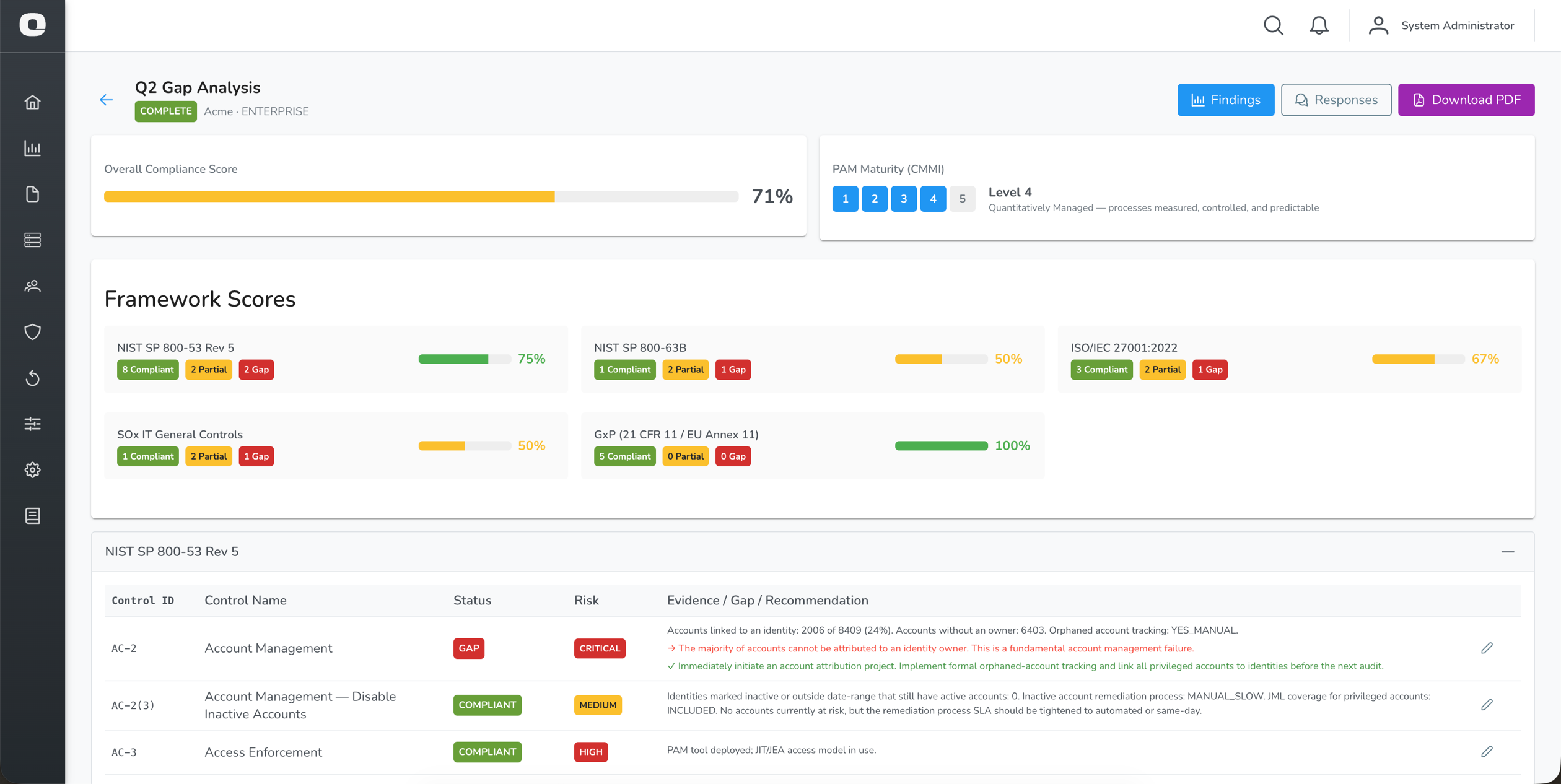
Supported Frameworks
Each assessment evaluates your PAM posture against the following frameworks simultaneously:
| Framework | Description |
|---|---|
| NIST SP 800-53 Rev 5 | US federal controls for access management and audit |
| NIST SP 800-63B | Digital identity guidelines focusing on authentication assurance |
| ISO/IEC 27001:2022 | International information security management standard |
| SOx IT General Controls | Sarbanes-Oxley ITGC requirements for financial systems (in-scope assessments only) |
| GxP (21 CFR 11 / EU Annex 11) | Regulatory requirements for life sciences and pharmaceutical environments (in-scope assessments only) |
SOx and GxP controls are included only when you indicate those areas are in scope during the questionnaire.
Assessment Lifecycle
DRAFT → IN_PROGRESS → COMPLETE
| Status | Description |
|---|---|
| DRAFT | Assessment created but the questionnaire has not been started |
| IN_PROGRESS | Questionnaire is being completed; responses can still be edited |
| COMPLETE | Assessment has been finalised; responses and findings are locked |
Once an assessment is marked Complete it cannot be modified. A PDF export can be downloaded at any time after completion.
Creating an Assessment
- Navigate to Reports > PAM Gap Analysis
- Click New Assessment
- Fill in the details:
| Field | Required | Description |
|---|---|---|
| Title | Yes | A name for this assessment (e.g., "Q1 2026 PAM Maturity Review") |
| Description | No | Additional context or scope notes |
- Click Create
The new assessment opens directly in the questionnaire wizard.
When you create a new assessment, OrbisID pre-populates the questionnaire with responses from the most recently completed assessment. This saves time on repeat assessments and lets you focus on what has changed.
Completing the Questionnaire
The questionnaire is divided into sections presented as a wizard. Navigate between sections using the step bar at the top of the page, or use Back and Next.
Sections
| Section | Description |
|---|---|
| 1. Scope & Context | Organisation size, industry, and which frameworks apply (including SOx/GxP) |
| 2. PAM Tooling | Whether a PAM tool is in use, which product, and deployment maturity |
| 3. Technology Stack Selection | Which technology areas are in scope for this assessment |
| 3a–3g. Stack sub-sections | Per-stack questions for AD, Windows, Linux, Network, Databases, Cloud, and Other (shown only for selected stacks) |
| 4. Access Governance | Lifecycle management, access reviews, separation of duties |
| 5. Authentication | MFA, password policies, and credential strength |
| 6. Session Management | Session recording, monitoring, and just-in-time access |
| 7. Audit & Monitoring | Logging, alerting, and SIEM integration |
| 8. SOx ITGC | Change management, access controls for financial systems (shown when SOx is in scope) |
| 9. GxP | Audit trail completeness, electronic signatures (shown when GxP is in scope) |
Question Types
| Type | How to Answer |
|---|---|
| Yes / No | Click the Yes or No button |
| Select | Choose one option from the dropdown |
| Multi-select | Choose all applicable options |
| Text | Free-text response |
Some questions are conditional and only appear based on earlier answers (for example, stack-specific questions only appear for stacks you selected).
Saving Progress
Click Save Responses at the bottom of each section to save your current answers. Responses are saved per-section. You can return to any section at any time while the assessment is IN_PROGRESS.
Completing the Assessment
When all sections are answered to your satisfaction:
- Navigate to the final section
- Click Complete Assessment
- Confirm the prompt
OrbisID processes all responses, evaluates each framework control, and generates the findings. The assessment status changes to COMPLETE and the questionnaire becomes read-only.
Completing an assessment is irreversible. Ensure all responses are accurate before proceeding.
Delegating Sections to Subject Matter Experts
Requires Enterprise edition.
If parts of the questionnaire cover technology areas managed by other teams, you can delegate those sections to external contributors without giving them an OrbisID login.
Creating a Delegation Link
- Open an IN_PROGRESS assessment
- Click Delegate
- Fill in the delegation details:
| Field | Required | Description |
|---|---|---|
| Technology Area | No | Free-text label for the area being delegated (e.g., "Network Infrastructure") |
| Stack(s) | No | Specific stacks this delegation covers (for reference only) |
| Recipient Email | No | Email address to send the link to |
| Description | No | Instructions or context for the recipient |
| Link Expiry | Yes | How many days the link remains valid (default: 14) |
- Click Create Delegation
A unique link is generated. If you supplied an email address, OrbisID sends the link automatically. You can also copy the link and share it manually.
What the Recipient Sees
The recipient opens the link in any browser — no account required. They see a standalone questionnaire page showing only the questions relevant to their delegation. At the bottom of the page they must:
- Enter their full name
- Tick the acknowledgment checkbox confirming their responses are accurate
- Click Submit & Sign
Submission is a one-time action. Once submitted, the link is consumed and responses are stored against the assessment.
Managing Delegations
The delegations panel on the assessment page shows all tokens created for the assessment:
| Column | Description |
|---|---|
| Recipient email (if provided) | |
| Technology Area | Label given at creation |
| Created | Date the token was created |
| Expires | Date the link expires |
| Status | Pending, Submitted, or Expired |
| Signatory | Name entered by the recipient on submission |
You can:
- Copy link — copy the URL to share manually
- Edit email — update the recipient address and resend
- Resend — send the link again to the current email address
Findings
After an assessment is completed, navigate to Findings (the default view) to see the control-by-control evaluation.
Framework Summary
At the top of the findings page, each framework shows:
| Element | Description |
|---|---|
| Compliant | Controls fully satisfied |
| Partial | Controls partially satisfied |
| Gap | Controls with identified gaps |
| N/A | Controls not applicable to this assessment |
| Score | Overall compliance percentage for the framework |
Finding Detail
Each row in the findings table represents a single framework control:
| Column | Description |
|---|---|
| Control ID | Framework reference (e.g., AC-2, A.9.2.3) |
| Control Name | Short name of the control |
| Status | Compliant, Partial, Gap, or Not Applicable |
| Risk | Critical, High, Medium, Low, or Informational |
| Evidence / Gap / Recommendation | Detail of what was found and what action is needed |
Controls are grouped by framework. Click a framework panel header to collapse or expand it.
Overriding a Finding
If a finding does not accurately reflect your environment, an administrator can override it:
- Click the override icon on a finding row
- Select the corrected status
- Enter a justification
- Click Save Override
Overrides are recorded with the justification and are visible in the PDF export.
Responses
Click Responses to see a read-only view of all questionnaire answers, grouped by section.
This view shows:
- Assessor responses — answers entered directly in OrbisID
- Delegatee responses — one panel per submitted delegation, showing the signatory name, submission date, and their answers
Downloading the PDF Report
Click Download PDF to generate a full assessment report. The PDF includes:
| Section | Content |
|---|---|
| Cover page | Assessment title, date, licensed organisation, and edition |
| Executive Summary | Overall maturity score (CMMI level), framework scores, and key risk indicators |
| Framework Findings | Control-by-control results for each applicable framework |
| Risk Summary | Findings grouped by risk level |
| Remediation Roadmap | Prioritised list of recommended actions |
| Appendix A — Methodology | Explanation of the scoring approach |
| Appendix B.1 — Assessor Responses | Full questionnaire Q&A from the primary assessor |
| Appendix B.2+ — Delegatee Responses | One appendix section per submitted delegation, including signatory name and submission date |
The PDF is generated on demand and reflects the assessment state at the time of download.
Threat Detections and Gap Analysis
If you have deployed Endpoint Sensors, OrbisID automatically incorporates your Threat Detection activity as evidence when evaluating monitoring controls. No extra configuration is required.
How it works
When you complete an assessment, OrbisID takes a snapshot of your current Threat Detection state:
| Data point | Used for |
|---|---|
| Active Endpoint Sensors (online count) | Evidence that real-time Windows endpoint monitoring is in place |
| Open Threat Detections | Shows the engine is actively generating detections |
| Confirmed Threat Detections | Analyst review evidence — demonstrates detections are being triaged |
This data is factored into the following controls:
| Control | Framework | Effect |
|---|---|---|
| AU-2 Event Logging — Audit Events | NIST 800-53 | Active sensors + SIEM = Compliant. Active sensors without SIEM = Partial (with recommendation to forward via CEF syslog) |
| AC-6(9) Log Use of Privileged Functions | NIST 800-53 | Active sensors count as partial logging coverage for Windows endpoints |
| A.8.15 Logging | ISO 27001 | Active sensors count toward the alerting dimension |
| ITGC-OP-1 Monitoring of Privileged Activity | SOx ITGC | Active sensors + confirmed detections = Compliant. Active sensors without SIEM = Partial (SOx requires 7-year log retention via a SIEM) |
Answering "No" to monitoring questions
If you answer No to "Is there real-time alerting configured for anomalous privileged activity?" or "Are privileged access events forwarded to a SIEM?", the recommendation for affected controls will include guidance on how OrbisID Endpoint Sensors can help close the gap — including using the built-in CEF syslog integration to forward detections to a SIEM.
Building SOx evidence with Threat Detections
For SOx in-scope assessments, the ITGC-OP-1 control requires evidence that privileged activity is both monitored and reviewed. To satisfy both:
- Deploy at least one Endpoint Sensor (provides the monitoring evidence)
- Confirm at least one genuine Threat Detection in the Threat Detections page (provides the analyst-review evidence)
- Enable CEF syslog forwarding to a SIEM for log retention (Administration → Settings)
Assessment List
Navigate to Reports > PAM Gap Analysis to see all assessments.
| Column | Description |
|---|---|
| Title | Assessment name |
| Status | DRAFT, IN_PROGRESS, or COMPLETE |
| Frameworks | Which frameworks were evaluated, including SOx and GxP when in scope |
| CMMI Level | Maturity level (1–5) calculated at completion |
| Created | Date the assessment was created |
| Completed | Date the assessment was finalised |
Click an assessment row to open it.
Deleting an Assessment
- Click the delete icon on an assessment row
- Confirm the prompt
Deletion is permanent and removes all responses and findings. It is recorded in the Audit Log.