Key Risk Indicators (KRIs)
KRIs are metrics that quantify your privileged access risk posture. Each KRI measures a specific aspect of risk and uses RAG (Red/Amber/Green) thresholds to indicate severity.
KRI Overview
Navigate to KRIs to see all current indicator values.
Each KRI card shows:
| Element | Description |
|---|---|
| Name | What is being measured |
| Current Value | Latest count or percentage |
| RAG Status | Green (within tolerance), Amber (warning), or Red (critical) |
| Change | Increase or decrease since the last snapshot |
Built-in KRIs
| KRI | Description | Community |
|---|---|---|
| Privileged Without Owner | Privileged accounts not linked to an identity | Yes |
| Unlinked Accounts | All accounts (privileged or not) without an identity | Yes |
| Not in PAM Tool | Privileged accounts not found in your PAM tool inventory | Yes |
| Standing Privileges | Always-on privileged access (not just-in-time) | Yes |
| Shared Privileged Accounts | Accounts used by more than one person | Pro+ |
| All Privileged Accounts | Total count of privileged accounts | Pro+ |
| System Coverage | Percentage of systems successfully scanned recently | Pro+ |
| Entitlement Distribution | Concentration of high-privilege entitlements | Pro+ |
KRI Definitions
Navigate to KRIs and view the definitions to see or edit the configuration for each KRI.
Each definition has:
| Field | Description |
|---|---|
| Code | Unique identifier (e.g., PRIVILEGED_WITHOUT_OWNER) |
| Name | Display name |
| Description | What the KRI measures and why it matters |
| Green Threshold | Values at or below this are healthy |
| Amber Threshold | Values between Green and Red are a warning |
| Red Threshold | Values at or above this are critical |
| Enabled | Whether the KRI is active |
Thresholds are inclusive. For example, if Green = 5, Amber = 15, and Red = 16, then a value of 5 is Green, 15 is Amber, and 16 is Red.
Editing Thresholds
- Click on a KRI definition
- Adjust the Green, Amber, and Red threshold values
- Click Save
Threshold changes take effect immediately on the dashboard and KRI pages.
KRI Snapshots
Requires Pro or Enterprise edition.
Snapshots capture a point-in-time record of all KRI values. They are used to build trend charts and track progress over time.
Automatic Snapshots
A snapshot is taken automatically each time a scan completes.
Manual Snapshots
- Navigate to KRIs > Snapshots
- Click Take Snapshot
Viewing Snapshots
The snapshots page shows a table of all historical snapshots with their timestamp and KRI values. Click a snapshot to see its full breakdown.
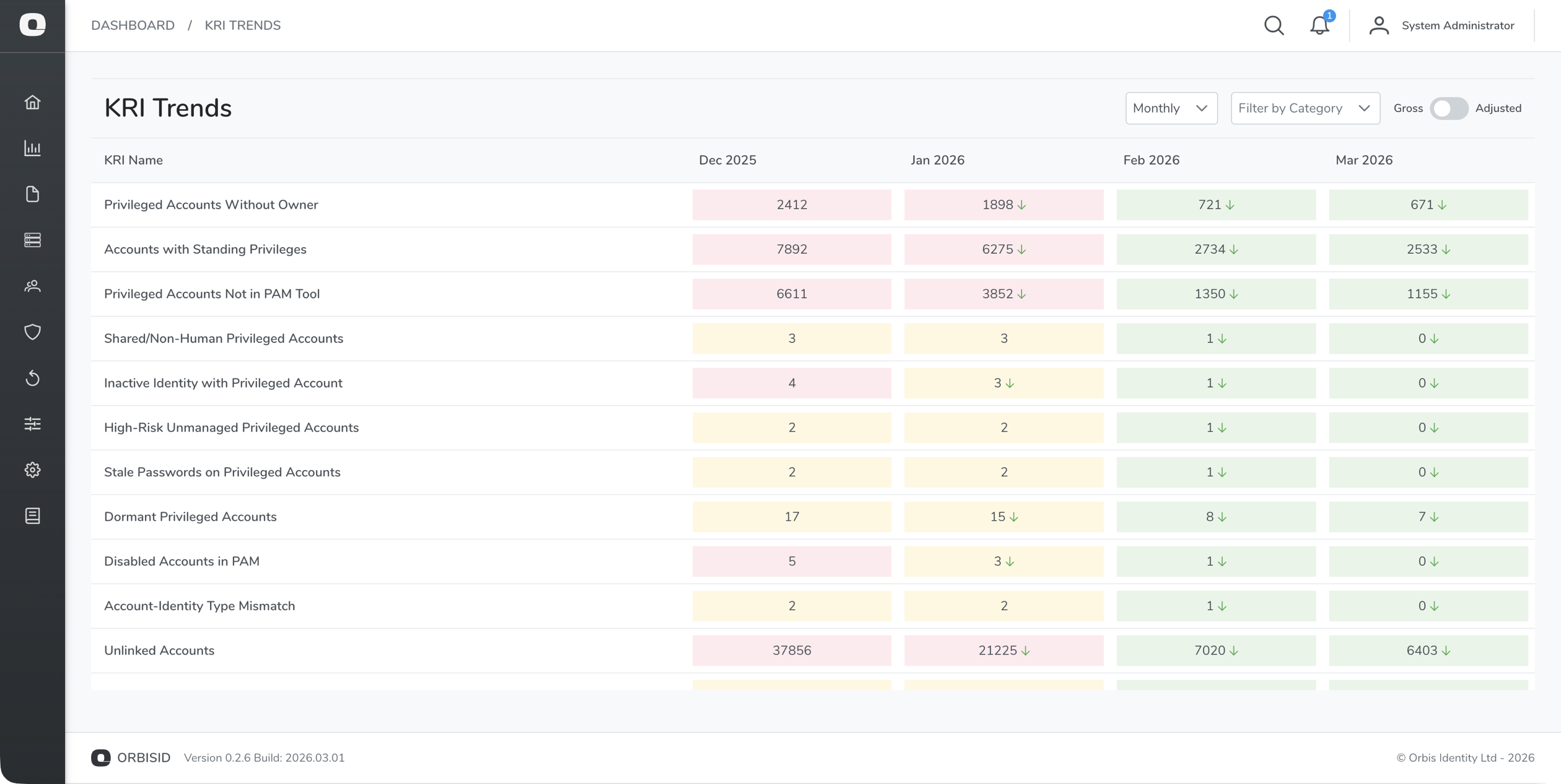
KRI Trends
Requires Pro or Enterprise edition.
Navigate to KRIs > Trends to view KRI values over time as a chart.
- Select one or more KRIs to display
- Choose a time range
- The chart background uses RAG colouring to show threshold bands
This makes it easy to spot whether your risk posture is improving or deteriorating.
KRI Exceptions
Requires Enterprise edition.
Exceptions allow you to formally acknowledge and exclude specific accounts from KRI calculations. This is useful for accounts that have been reviewed and accepted as a known risk.
Creating an Exception
- Navigate to KRIs > Exceptions
- Click Add Exception
- Fill in:
| Field | Required | Description |
|---|---|---|
| KRI | Yes | Which KRI this exception applies to |
| Account | Yes | The account being excepted |
| Reason | Yes | Justification for the exception |
| Approver | Yes | Who approved this exception |
| Expiry Date | No | When the exception expires (must be re-approved after this date) |
- Click Save
Managing Exceptions
- Expired exceptions are highlighted in amber and should be reviewed and either renewed or removed
- Delete an exception to bring the account back into KRI calculations
- All exception changes are recorded in the audit log