Systems
The Systems page manages your target system inventory - the infrastructure that OrbisID scans for privileged accounts.
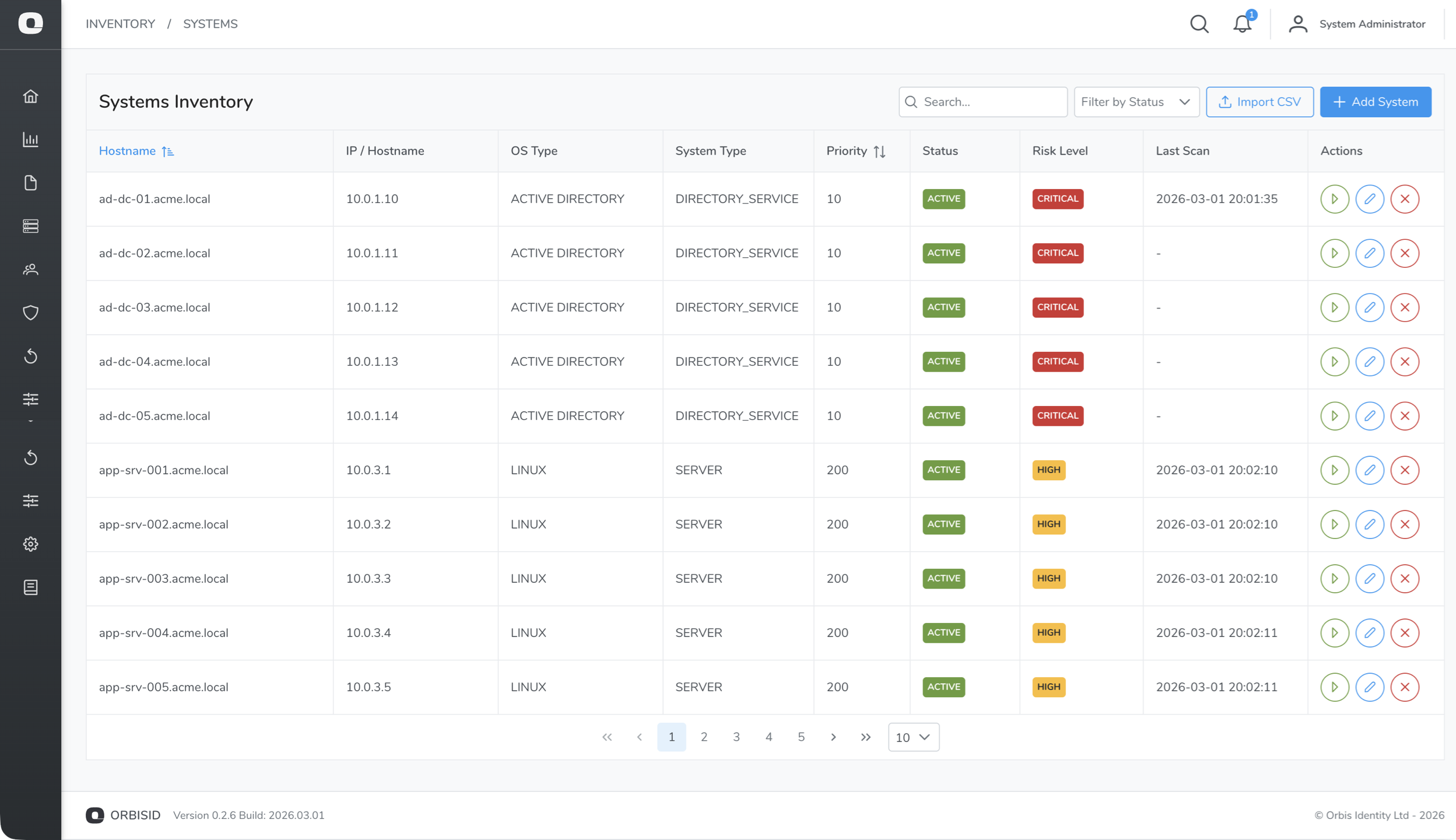
Viewing Systems
The systems table shows all registered systems with columns for:
- Name - display name for the system
- Hostname / IP - network address used for connections
- System Type - classification (Directory Service, Server, Infrastructure, etc.)
- OS Type - the scanning protocol used (Active Directory, Linux, SQL Server, etc.)
- Status - Active or Offboarded
- Last Scan - timestamp of the most recent successful scan
- Scan Priority - execution order within scan policies
Use the search bar and filters at the top to find specific systems.
Adding Systems
There are three ways to add target systems.
Manual Entry
- Click Add System
- Fill in the required fields:
| Field | Required | Description |
|---|---|---|
| Name | Yes | A descriptive name for the system |
| Hostname / IP | Yes | Network address OrbisID uses to connect |
| Port | No | Connection port (auto-filled based on OS type) |
| OS Type | Yes | Determines the scanning method (see below) |
| System Type | Yes | Classification category |
| Credential | Yes | The stored credential used to authenticate |
| Scan Priority | No | Execution order (lower = scanned first, -1 = excluded) |
- Click Test Connection to verify OrbisID can reach the system
- Click Save
CSV Import
- Click Import CSV
- Download the CSV template for the correct column format
- Upload your populated CSV file
- Review the preview and confirm the import
Active Directory Discovery
- Click Discover from AD
- Enter your domain controller connection details
- Click Test Connection to verify
- Browse the directory and select systems to import
- Click Import Selected
Supported OS Types
Each OS type determines how OrbisID connects to and scans a system.
| OS Type | Protocol | Default Port | Edition |
|---|---|---|---|
| Active Directory | LDAP/LDAPS | 389/636 | Community+ |
| Linux | SSH | 22 | Community+ |
| Windows | WinRM | 5985 | Community+ |
| SQL Server | JDBC | 1433 | Pro+ |
| CSV | File import | - | Pro+ |
| CSV PAM | File import | - | Community+ |
| Custom Script | Script execution | - | Enterprise |
Active Directory
Scans domain controllers via LDAP to discover:
- User and computer accounts
- Group memberships and nesting
- Administrative group members (Domain Admins, Enterprise Admins, etc.)
- Service accounts
- Account status (enabled, disabled, locked)
LDAPS (port 636) is recommended for encrypted connections.
Linux
Connects via SSH to discover:
- Local user accounts (
/etc/passwd) - Group memberships (
/etc/group) - Sudo privileges (
/etc/sudoers,/etc/sudoers.d/) - Running services (systemd)
- Scheduled tasks (cron)
Requires a credential with sufficient privileges to read the files above (typically root or a user with sudo access).
SQL Server
Connects via JDBC to discover:
- Server logins and roles (
sys.server_principals) - Role memberships (
sys.server_role_members) - Database-level permissions
When adding a SQL Server system, you must also specify the database name to connect to.
CSV
Imports account and entitlement data from a CSV file. Useful for systems that cannot be scanned directly. You configure:
- Source type - Network path or file upload
- Delimiter - Comma, semicolon, tab, or pipe
- Has header row - Whether the first row contains column names
- Data type - Which data the CSV contains (accounts, entitlements, identities)
- Column mappings - Map CSV columns to OrbisID fields
CSV PAM
Similar to CSV but specifically for importing PAM tool account data for reconciliation purposes.
Custom Script (Enterprise)
Runs a user-provided script to scan any system type. Scripts can be:
- Path mode - script is already present on the Scan Agent host
- Upload mode - script is uploaded to OrbisID and pushed to the agent at scan time
Scripts receive connection details as JSON on stdin and must output results as JSON on stdout. See Scan Agent - Custom Scripts for the full specification.
Scan Priority
Scan priority controls the order in which systems are scanned within a policy execution.
| Priority | Behaviour |
|---|---|
| Lower number | Scanned first |
| Higher number | Scanned later |
-1 | Excluded from scheduled scan policies (can still be scanned manually via "Scan Now") |
Default priorities by system type:
| System Type | Default Priority |
|---|---|
| Directory Service | 10 |
| Server | 200 |
| All others | 500 |
Directory Services are scanned first because they often provide identity context needed to link accounts discovered on other systems.
Testing Connections
Click Test Connection on any system to verify OrbisID can reach it with the configured credential. The test:
- Establishes a connection using the system's protocol (LDAP, SSH, JDBC, etc.)
- Authenticates with the assigned credential
- Reports success or failure with diagnostic details
For Custom Script systems, the connection test runs the script with the --test flag.
Offboarding Systems
Offboarding removes a system from the active scan scope without deleting its historical data.
- Select a system
- Click Offboard
- Confirm the action
Offboarded systems:
- Are excluded from all scan policies
- Retain their scan history, accounts, and entitlements
- Can be re-onboarded later
To re-onboard, select the offboarded system and click Re-onboard.